
Getting started with Naymo as a landlord
Set up Naymo step by step: landlord profile, first property with price list and meters, a new tenancy, the tenant invitation and activation.
 The Naymo team
5 min read
Contents
This guide takes you from an empty account to an active tenancy with a tenant invited and the first invoice on its way. It takes about fifteen minutes. If you are a tenant, go straight to the section “Joining as a tenant” near the end.
While you set up, the Dashboard shows a Get set up checklist with the same five steps and ticks each one off as you finish it.
1. Fill in your landlord profile
- Open Settings at the bottom of the sidebar and choose Landlord profile.
- Pick the Legal type, then enter your Legal name: your full name, or the company name for a business.
- Enter your Tax ID (РНОКПП, NIP or PESEL), the Country and the Invoice address. These details are printed on invoices and contracts.
- Tick I accept the Data Processing Agreement. You are the controller of your tenants' data; Naymo processes it on your behalf.
- Press Save. The button stays inactive until the agreement is ticked.
2. Add a property
- Go to Properties and press Add property.
- Fill in Name (for example the street and flat number), Type, Country, Street address, City and, if you like, Postal code, Area, m², Rooms and Floor.
- Check the Default currency and Time zone.
- Optionally add House rules: tenants see them on their tenancy page. Insert template gives you a starting text.
- Under Price list to start from, choose a preset: Rent only, Ukraine: rent + utilities or Poland: czynsz + administrative fee + media. You can add, rename or remove lines at any time.
- Enter the Monthly rent, or leave it empty to fill the price list later.
- Press Create property.
Price list and meters
The property page now shows the Price list and Meters sections.
- To add a charge, press Add line and fill in Name, Code, Kind, Period, Amount, Currency and Who pays. Untick Counts as my income for costs you only pass on, such as building fees.
- If the tenant pays utilities by consumption, press Add meter under Meters, choose the Type, enter the Serial, Unit and Initial reading, and press Save. Then add a price line of the kind By meter, choose that meter and enter the Tariff per unit.
How meters reach the invoice is explained in Meter readings.
3. Create a tenancy
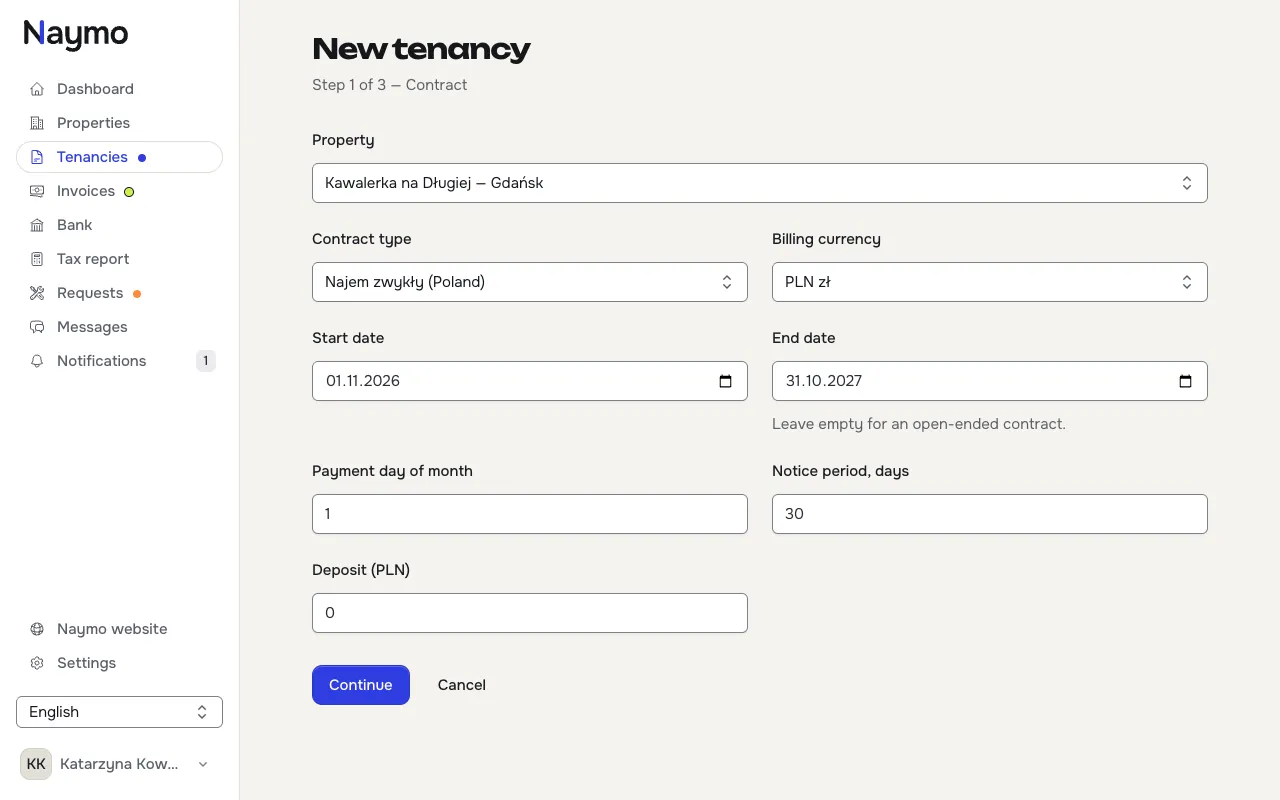
- Go to Tenancies and press New tenancy. The wizard has three steps.
- Step 1 – Contract. Choose the Property, the Contract type and the Billing currency (the currency the tenant pays in). Enter the Start date and, for a fixed term, the End date; leave it empty for an open-ended contract. Set the Payment day of month (1 to 28), the Notice period, days and the Deposit. Press Continue.
- Step 2 – Prices and deposit. The lines are copied from the property's price list. Adjust them for this tenant if needed, then press Continue.
- Step 3 – Tenants. Enter the tenant's Email and Role (Primary tenant, Co-tenant or Occupant). Use Add another person for flatmates. Each person gets an email with a personal link to the tenancy.
- Press Create draft tenancy.
The price list of a tenancy is frozen: later changes to the property's prices do not alter it. That keeps every invoice in line with what was agreed.
4. Invite the tenant and activate
- Open the tenancy. If you skipped step 3 of the wizard, go to the People tab, enter the email and role and press Invite. The person shows as Invited until they accept.
- When the contract is signed, press Activate at the top of the tenancy and confirm. The contract terms and the price list lock, and billing can start. An active tenancy cannot go back to draft.
Activation needs at least one tenant and at least one price line. If something is missing, a red message under the buttons says what to fix. For a lease signed on paper you can activate straight from draft.
5. The first invoice
About five days before each payment day, a draft of the monthly invoice appears on the tenancy's Money tab. You can also create it straight away with the Draft for button. Check the lines, press Issue and confirm: the invoice gets its number and PDF, and the tenant is notified. Details are in Invoices and payments.
Your dashboard
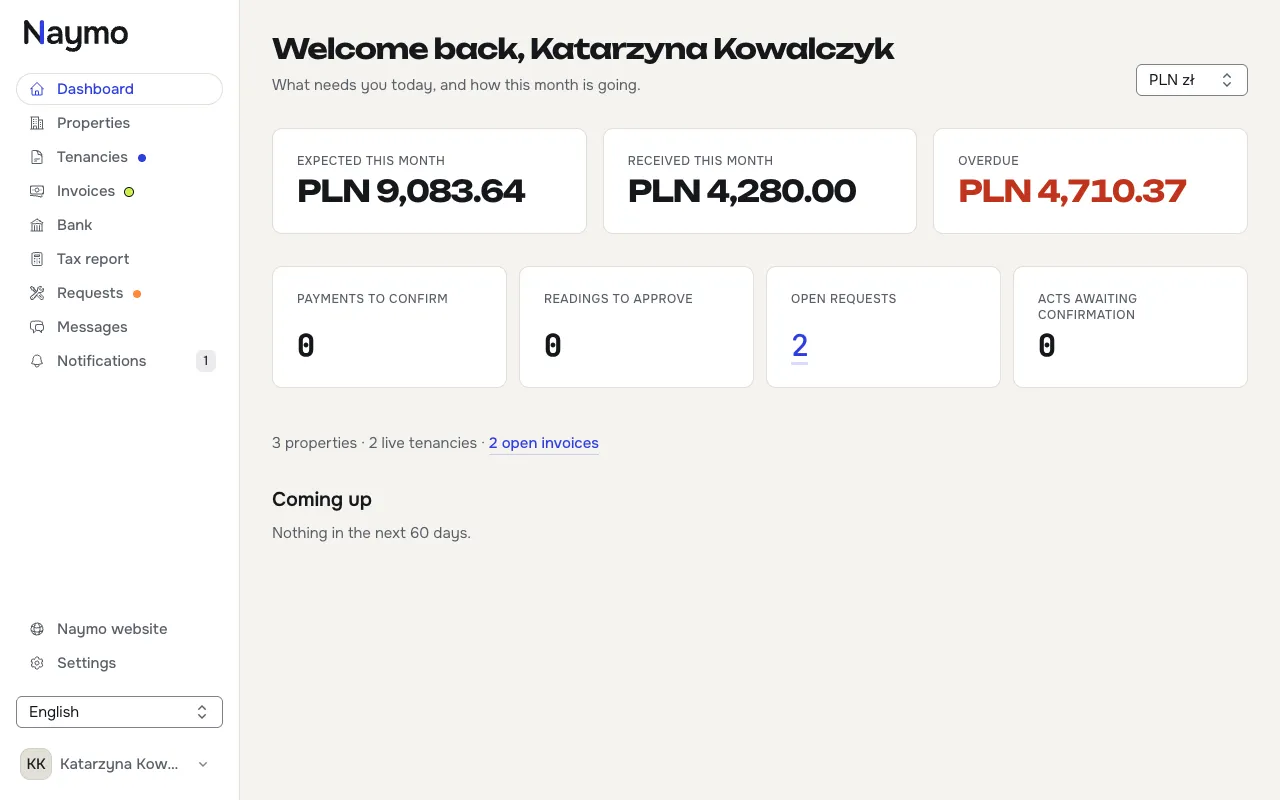
The Dashboard shows Expected this month, Received this month and Overdue, then four counters: Payments to confirm, Readings to approve, Open requests and Acts awaiting confirmation. Coming up lists dates in the next 60 days. If you rent out in several currencies, choose the reporting currency in the top right corner.
Joining as a tenant
- Open the email Your tenancy at … and press Open my tenancy. The link is valid for 24 hours and can be used once.
- If you are new to Naymo, enter your Name, a Password and Confirm password, then press Create account and open tenancy. If you already have an account, log in with that email.
- The tenancy opens with the contract, invoices and meter readings.
If the page says This link is no longer valid, ask your landlord to send a new invitation from the People tab.
Questions and answers
Can I set up a tenancy that started before I joined Naymo?
Yes. Enter the real start date and term in step 1, then activate the tenancy when you are ready. Check the Money tab afterwards to see which invoice drafts have appeared.
How much does it cost?
One active tenancy is free. Plans for more flats are on the pricing page. Tenants never pay.
Where is the lease itself?
Open the tenancy's Contract tab. How templates, signed copies and amendments work is described on the lease agreements page.
Didn’t find your answer? Email us at [email protected]