
Invoices and payments in Naymo
Issue the monthly rent invoice, record or confirm payments, import a bank statement and correct an invoice with a credit note, step by step.
 The Naymo team
5 min read
Contents
This guide shows landlords how to issue the monthly invoice, record payments, import a bank statement and correct an invoice, and shows tenants how to pay and report a payment. Everything happens on the tenancy's Money tab and on the invoice page.
How an invoice is built
Each tenancy has its own price list, copied from the property and frozen when the tenancy was created. A monthly invoice is built from it:
- Fixed lines, such as rent or parking, are added for every period they fall in.
- By meter lines are added from approved meter readings: consumption multiplied by the tariff. See Meter readings.
- Anything else, such as a replaced lock, goes on a separate one-off invoice that you create by hand.
A line can be priced in one currency and billed in another. The invoice then shows the original amount and the rate next to the converted line, and the rate stays in the invoice for good. How rates are chosen is explained on the multi-currency rent page. Lines marked pass-through are costs you only pass on; they are not counted as your income.
For landlords
Issue the monthly invoice
- Open Tenancies, choose the tenancy and go to the Money tab.
- About five days before the payment day, a draft for the coming month appears under Invoices with the status Draft. To create it earlier, press Draft for followed by the month.
- Open the draft by its number to check the lines, quantities and amounts.
- Press Issue and confirm. The invoice gets its number and PDF, and the tenant is notified. The number cannot be released later, so check first.
If a draft is wrong, press Discard draft on the invoice page (or Cancel draft in the list) and create it again.
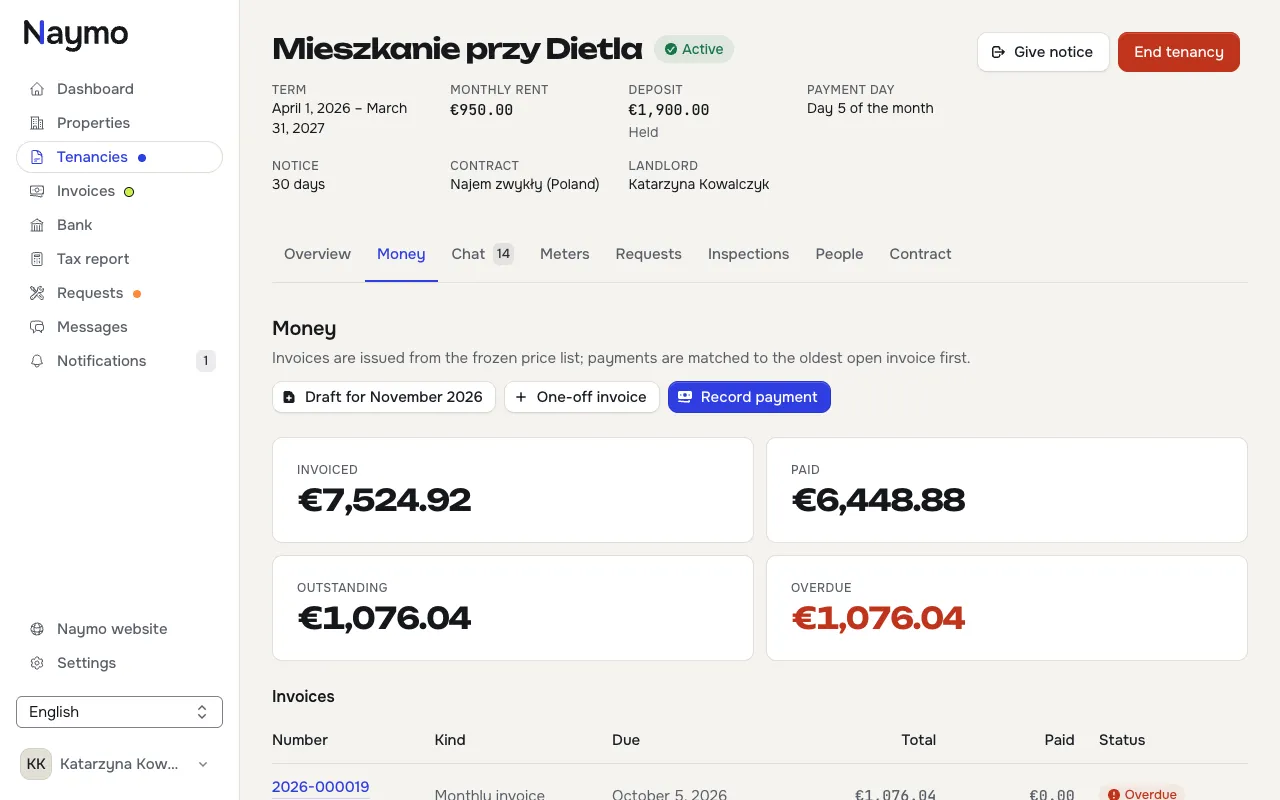
The four totals at the top, Invoiced, Paid, Outstanding and Overdue, are in the tenancy's billing currency.
Bill a one-off charge
- On the Money tab press One-off invoice.
- Enter a Description, Unit price and Quantity for each line. Untick Income if you only pass the cost on. Use Add line for more.
- Set the Due date, add a Note if needed and press Create draft.
- Open the draft and press Issue.
Record a payment
- On the Money tab press Record payment.
- Enter the Amount, choose the Method (for example Bank transfer or Cash), set the Date and, if you like, a Reference such as the invoice number or transfer title.
- Press Save.
The payment settles the oldest open invoice first. If it covers more than one invoice, they are settled in order; if it is short, the invoice becomes Partially paid.
Confirm a payment the tenant reported
When a tenant reports a payment, a note on the Money tab shows the amount waiting for confirmation, and the Payments to confirm counter on your dashboard goes up.
- Find the payment in the Payments to confirm card on the Money tab.
- Check your bank account, then press Confirm, or Reject if the money has not arrived.
A reported payment does not change the balance until you confirm it.
Import a bank statement
- Download a statement from your online banking as a CSV or MT940 file.
- Go to Bank in the sidebar, choose the file under Statement file, leave Format on Detect automatically and press Import.
- Transfers that mention an invoice number are recorded automatically. The rest wait under Transactions with the filter Needs attention.
- For a Suggested line, press Confirm. For an Unmatched one, choose the invoice in Choose invoice and press Match. Press Ignore for transfers that are not rent.
Importing an overlapping statement does not count the same transfer twice. More on the bank statement matching page.
Correct or cancel an issued invoice
An issued invoice is never deleted. Open it and:
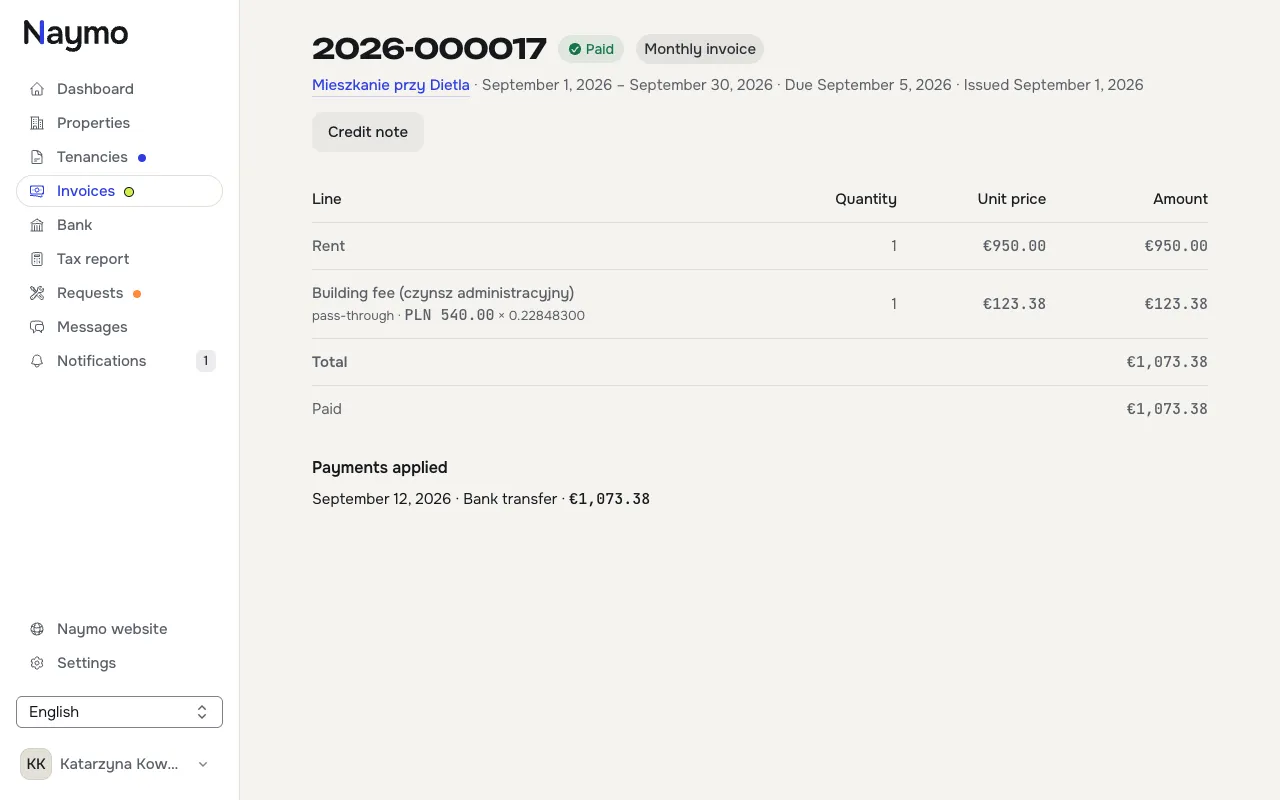
- press Credit note, enter the Amount and Reason, and press Issue credit note to reduce what the tenant owes; or
- press Cancel invoice and then confirm it, if nothing has been paid on it yet. The tenant no longer owes the amount, but the number stays used and the invoice stays in history.
Overdue invoices
The morning after the due date, an unpaid invoice gets the status Overdue. It shows in red on the tenancy and in the Overdue total on your dashboard.
For tenants
See and download your invoices
- Open Invoices in the sidebar to see every invoice across your tenancies, or the Money tab of your tenancy.
- Open an invoice by its number to see each line, the due date and the payments applied.
- Press PDF to download it.
Pay and report the payment
- Pay your landlord the way you agreed, for example by bank transfer. Put the invoice number in the transfer title, so the payment can be matched.
- On the Money tab press I have paid.
- Enter the Amount, Method, Date and a Reference, and press Save.
The payment shows as Unconfirmed until your landlord confirms it, and then as Confirmed.
If your landlord accepts online payments, the invoice page shows a Pay online card. Press Pay with the amount and follow the payment page; the invoice updates as soon as the payment provider confirms the payment. A service fee, if any, is shown before you pay.
Questions and answers
Does the tenant's money pass through Naymo?
No, unless the landlord has set up online payments. Normally the tenant pays the landlord directly and Naymo records that the payment arrived. See the rent invoicing page.
The tenant paid more than the invoice. What happens?
The payment settles the oldest open invoices first, and money left over waits for the next issued invoice.
Why is a meter reading missing from this month's draft?
Readings are added when the draft is created. A reading approved after that goes on the next invoice.
Didn’t find your answer? Email us at [email protected]