
Meter readings in Naymo
Add meters and tariffs, send a meter reading with a photo as a tenant, approve or reject it as a landlord and bill the consumption on the next invoice.
 The Naymo team
5 min read
Contents
This guide shows how to set up meters so utilities are billed by consumption, how a tenant sends a reading with a photo, and how the landlord approves it so it lands on the next invoice.
How it works
- The landlord adds the meters to the property and a price line By meter with a tariff for each.
- The tenant sends a reading, ideally with a photo of the meter. It waits with the status Awaiting approval.
- The landlord approves or rejects it. The tenant is notified either way.
- The consumption since the previous approved reading, multiplied by the tariff, becomes a line on the next invoice draft.
Readings cannot go backwards: a value lower than the last one is refused.
For landlords
Add meters and tariffs
- Open Properties and choose the property.
- In the Meters section press Add meter.
- Choose the Type (Electricity, Gas, Cold water, Hot water or Heating), enter the Serial, the Unit (for example m³ or kWh) and the Initial reading, the value on the meter today. Keep Active ticked and press Save.
- In the Price list section press Add line, set Kind to By meter, choose the Meter and enter the Tariff per unit. Set Who pays and untick Counts as my income if you only pass the cost on. Press Save.
The price list of a running tenancy is frozen, so a new metered line on the property applies to tenancies you create afterwards. For a tenancy still in draft, press Edit on the tenancy and adjust Price list for this contract.
Ask for readings
Open the tenancy, go to the Meters tab and press Ask tenants for readings. The tenants get a notification. It is a good habit to do this a few days before the invoice draft appears, which is about five days before the payment day.
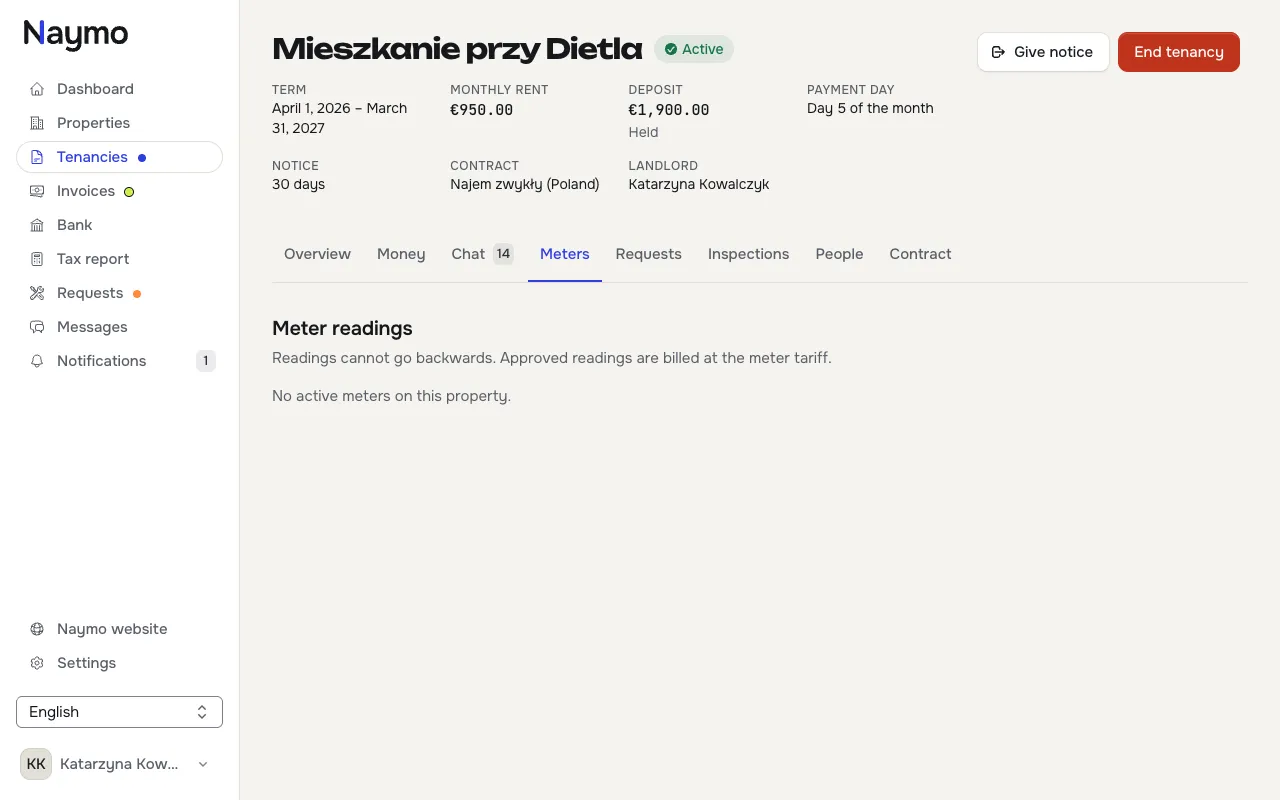
Each meter card shows the Last reading, the consumption of the last period and the average, a chart of recent months, and Recent readings with their statuses.
Approve or reject a reading
- Readings waiting for you are counted under Readings to approve on your dashboard.
- Open the tenancy and go to the Meters tab. The Readings to approve card lists each reading with the meter, value, date, who sent it and a thumbnail of the photo. Click the thumbnail to see the full photo.
- If the photo matches the value, press Approve.
- If not, press Reject, enter a Reason (for example "The photo shows 431.2, not 413.2") and press Reject reading. The tenant gets a notification with the reason and can send a corrected reading.
Approve readings of the same meter in date order: Naymo asks you to review the earlier reading first.
Enter a reading yourself
If you read the meter yourself, press Submit reading on the meter card, fill in the form and press Send reading. A reading you send is approved at once. Readings taken during a move-in or move-out inspection are recorded the same way; see Inspections and requests.
For tenants
Send a reading
- Open Tenancies, choose your tenancy and go to the Meters tab.
- On the card of the meter, press Submit reading.
- In Reading, type the number exactly as the meter shows it. Use a decimal point for the decimals.
- Check the Date. It is today by default and cannot be in the future.
- Under Photo of the meter, press Take or choose a photo. On a phone this opens the camera. The photo is optional, but it saves your landlord asking for proof.
- Press Send reading.
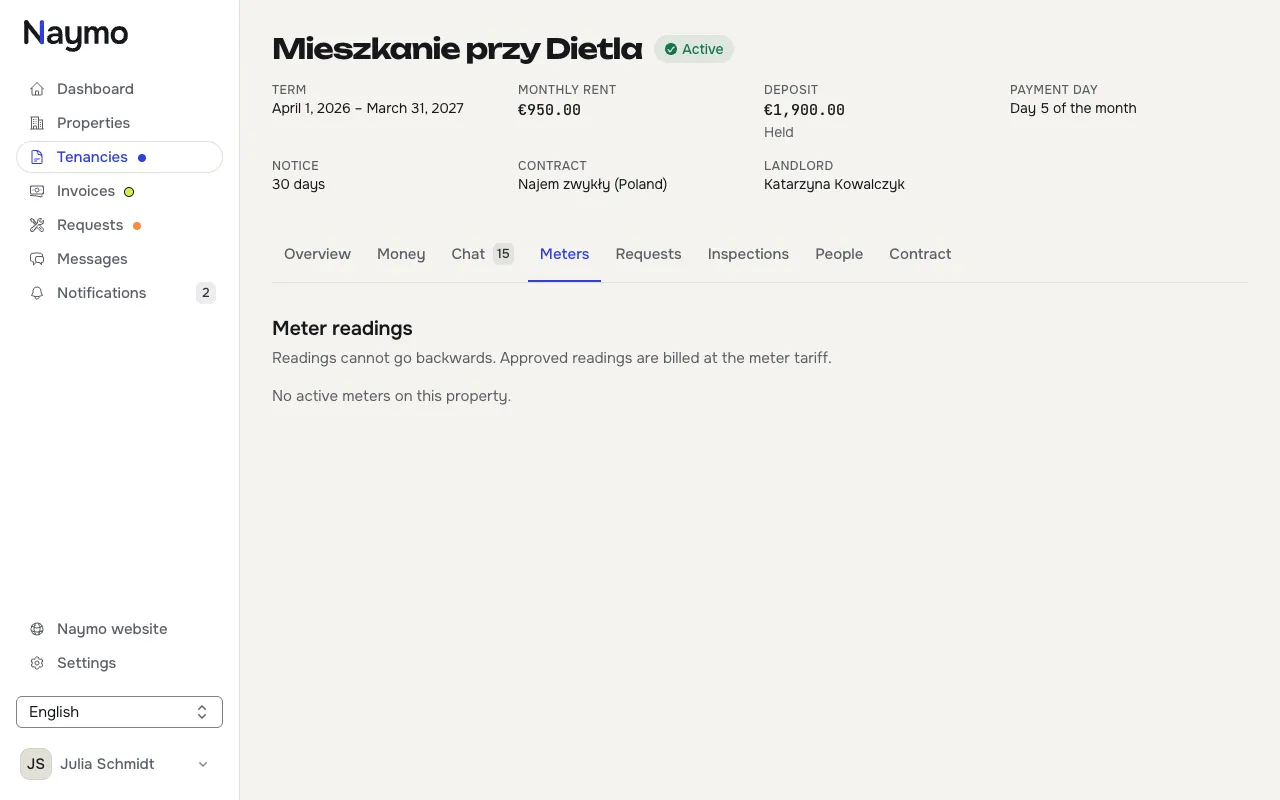
The reading appears under Recent readings as Awaiting approval, then Approved or Rejected.
If the reading is refused
- "The reading cannot be lower than the previous one": check the number and the meter. The message shows the previous value.
- "A later reading of this meter is already approved" or "is waiting for review": a reading with a later date already exists. Use today's date.
Billing
When the next monthly draft is created, each approved reading that has not been billed yet becomes a line: the consumption is the quantity, the tariff is the unit price, and the line shows the reading and its date. A reading approved after the draft was created goes on the following invoice. More in Invoices and payments.
Questions and answers
Where do I see how much water we use?
On the Meters tab every meter card shows the last period, the average and a chart of the last months.
Can I change a reading after it is approved?
No. An approved reading is part of the billing history. If a mistake was billed, the landlord can correct the invoice with a credit note.
How do I split one meter between several flats?
A meter belongs to one property, and its readings are billed to that property's tenancy. The utility split calculator and the article on billing utilities fairly can help you work out shares.
Didn’t find your answer? Email us at [email protected]