
Inspections and repair requests in Naymo
Record a move-in or move-out inspection room by room with photos, sign it with the tenant, and raise, discuss and close repair requests.
 The Naymo team
5 min read
Contents
This guide shows how to record the condition of the flat at move-in and move-out, sign the inspection with the tenant in the app, and handle repair requests from the first message to the closed request. Both live on the tenancy page, under the Inspections and Requests tabs.
Inspections
An inspection, or act, is a record of the flat room by room: each item has a condition, a note and photos. There are three types: Move-in, Move-out and Interim. The landlord fills it in; the act counts once the landlord and a tenant on the contract have both signed it.
Record an inspection (landlord)
- Open the tenancy and go to the Inspections tab. Inspections can be started on an active tenancy, including one under notice.
- Press Move-in, Move-out or Interim. A draft opens with rooms and items from a template for the property type, and a row for every active meter.
- For each item, choose the Condition: OK, Damaged, Missing or Not working. Add a Note, for example "scratch by the window".
- Press Add photo under the item. On a phone you can take the photo on the spot. Each photo shows who added it, when, and its SHA-256 checksum.
- To point out a defect, open a photo and draw an arrow, circle, box or text on it, then press Save. The original photo never changes; the drawings are stored separately.
- For meter rows, type the Meter value. It is recorded as an approved reading on the date of the inspection.
- If something is missing, press Add item, type the Room and Item and press Add.
- When everything is filled in, press Submit for confirmation. The draft is frozen and the tenants are asked to confirm.
- Press Sign act and confirm to add your own signature.
A Move-out inspection copies the rooms and items of the signed move-in act, and every item shows its move-in condition underneath, so you can compare them line by line.
Sign or dispute (tenant)
- Open your tenancy and go to the Inspections tab. Acts waiting for you have the status Awaiting sign-off.
- Open the act and check each room, item and photo.
- If you agree, press Sign act and confirm.
- If something is wrong, press Dispute, describe it in What is wrong with this act? and press Send dispute.
After a dispute, the act has the status Disputed. The landlord corrects it and presses Resubmit; earlier signatures are cleared and both sides sign again.
After both have signed
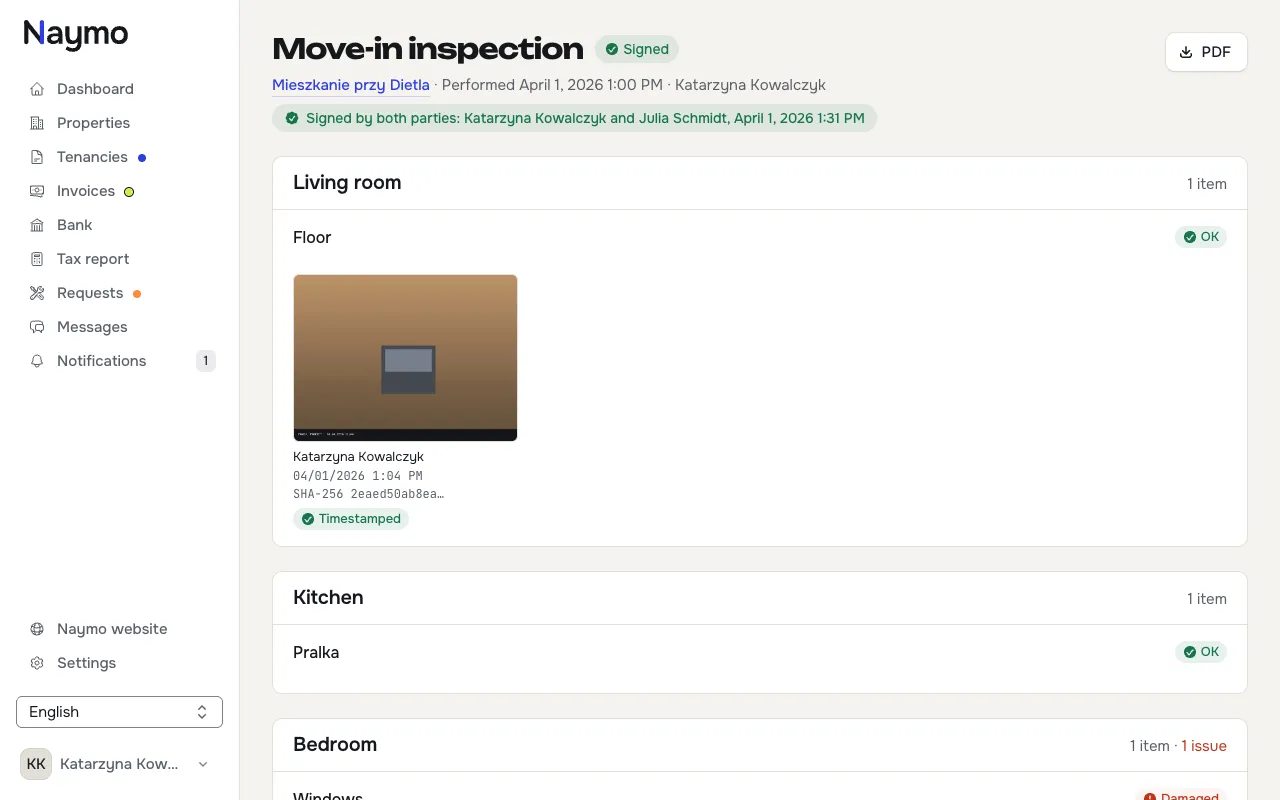
The act gets the status Signed, with a line saying who signed and when. Photos and items are frozen. Press PDF to download the report with the list of photo checksums. Until then, the act is counted under Acts awaiting confirmation on the landlord's dashboard.
For what to look at in each room, see the move-in inspection checklist. How photos are protected is described on the move-in inspection page.
Requests
A request is a conversation about one thing, with every comment, file and status change kept on record. Tenants and the landlord can both raise one on an active tenancy. Types are Repair, Force majeure, Change of terms, Early termination and Other.
Raise a request
- Open the tenancy and go to the Requests tab.
- Press New request.
- Choose the Type and Priority (Low, Normal, High or Urgent).
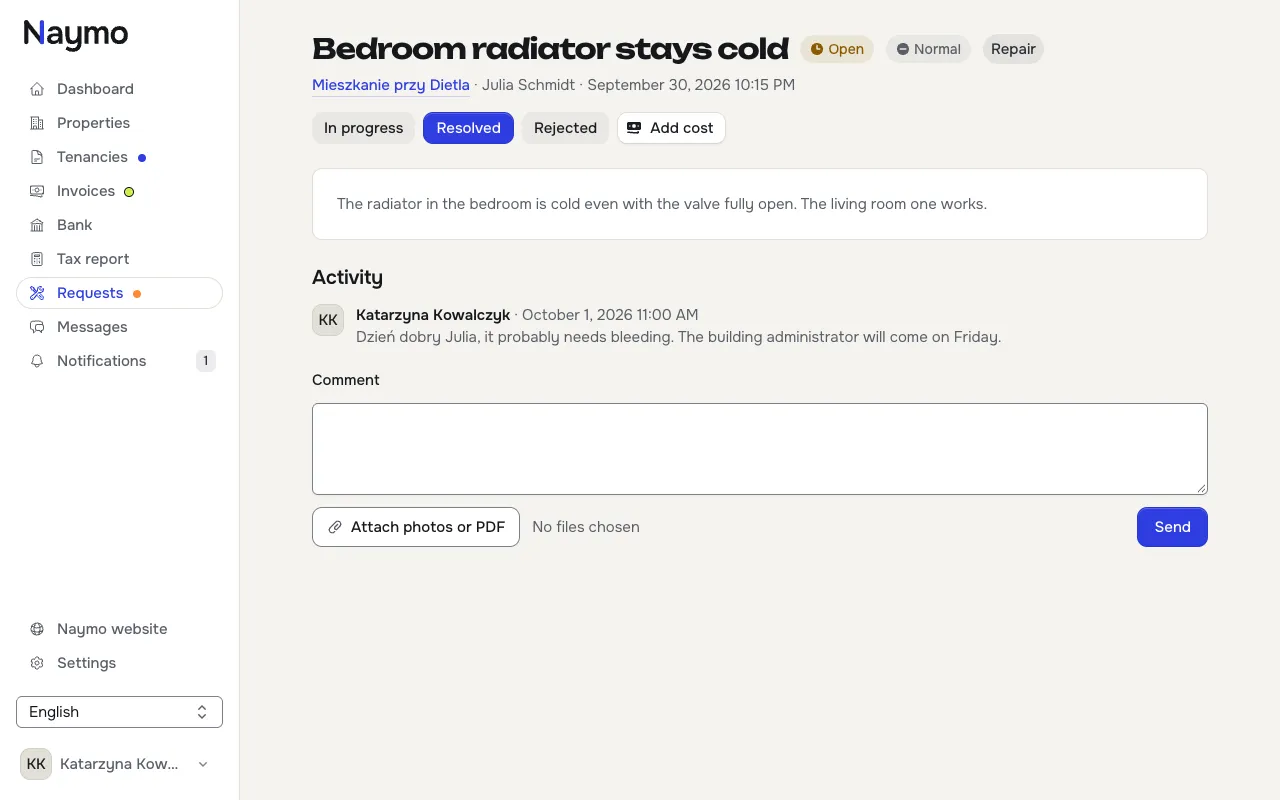
- Write a short Title, for example "Bedroom radiator stays cold", and a Description: what happens, since when, what you have tried.
- Add photos or a PDF under Attachments.
- Press Send request.
The request starts as Open. All your requests across tenancies are also under Requests in the sidebar, urgent first.
Comment and follow up
Open the request, type in Comment, add files with Attach photos or PDF if needed, and press Send. Both sides see the whole Activity history. A request that is Resolved or Rejected is closed for comments.
Handle a request (landlord)
- Open the request from your dashboard (Open requests), the sidebar or the tenancy.
- Change the status with In progress, Resolved or Rejected. Each change appears in the activity.
- To record what the repair cost, press Add cost, enter the Amount and a Description, and press Save cost.
- If the tenant should pay it, tick Invoice the tenant before saving. A one-off invoice draft is created in the tenancy currency; open it from the request and issue it as usual. Without the tick, the cost stays on the request as a Landlord expense.
More on the maintenance requests page. Invoices are explained in Invoices and payments.
Questions and answers
Can a signed act be changed?
No. Once both sides have signed, the act is frozen. If something changes later, record an Interim inspection.
Can the tenant add photos to the act?
The landlord fills in the act. If the tenant sees a problem that is not recorded, they dispute the act and describe it, or attach their own photos to a request.
Who sees requests?
Everyone on the tenancy: the tenants and the landlord side. Only the landlord side can change the status or add a cost.
Didn’t find your answer? Email us at [email protected]